Unable to attach empty optical drive to VM.
-
While attempting to attach an ISO to a VM, I have accidently attached the physical optical drive to the VM:
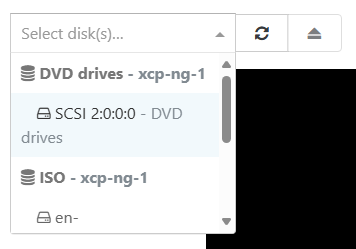
Once this was selected an exclaimation alert appeared, indicating that I could not access the disk until the vm was stopped and started.There were no ISO's in the ISO Repository at this stage, however, I added one at this point, and I could not change the selection to an ISO from the list.
I attempted a reboot from within the vm, it started ok, and the alert persisted. On stop/start, the vm failed to start.
[23:24 xcp-ng-1 ~]# xe vm-start uuid="3eb63bb4-29d1-f3a7-44a1-37fdb3711454" Error code: SR_BACKEND_FAILURE_456 Error parameters: , Unable to attach empty optical drive to VM.,- How do I remove the optical disk so I can boot my vm?
- Why couldn't I change the selected ISO?
Priority is low, as this is not a critical vm.
Edit:
Environment information
XCP-ng Version: v8.3.0 -
I've managed to at least solve part of my issue.
Using this article, I managed to pull together the information I needed in order to remove the Optical Drive from the VM.
It refereced
xe vbd-list. I found the manpage for that command, and noted that I could get the information I needed to remove the drive.For future me to reference - because I know I'll somehow do this again in the future.
- List all Virtual Block Devices (vbd's) associated to the vm (you can do this by
vm-uuid, orvm-label)
[20:42 xcp-ng-1 ~]# xe vbd-list vm-uuid="3eb63bb4-29d1-f3a7-44a1-37fdb3711454" params="all"Output should show the following.
uuid ( RO) : 7443c2f0-7c04-ab88-ccfd-29f0831c1aa0 vm-uuid ( RO): 3eb63bb4-29d1-f3a7-44a1-37fdb3711454 vm-name-label ( RO): veeam01 vdi-uuid ( RO): 7821ef6d-4778-4478-8cf4-e950577eaf4f vdi-name-label ( RO): SCSI 2:0:0:0 allowed-operations (SRO): attach; eject current-operations (SRO): empty ( RO): false device ( RO): userdevice ( RW): 3 bootable ( RW): false mode ( RW): RO type ( RW): CD unpluggable ( RW): false currently-attached ( RO): false attachable ( RO): <expensive field> storage-lock ( RO): false status-code ( RO): 0 status-detail ( RO): qos_algorithm_type ( RW): qos_algorithm_params (MRW): qos_supported_algorithms (SRO): other-config (MRW): io_read_kbs ( RO): <expensive field> io_write_kbs ( RO): <expensive field> uuid ( RO) : 4d0f16c4-9cf5-5df5-083b-ec1222f97abc vm-uuid ( RO): 3eb63bb4-29d1-f3a7-44a1-37fdb3711454 vm-name-label ( RO): veeam01 vdi-uuid ( RO): 3f89c727-f471-4ec3-8a7c-f7b7fc478148 vdi-name-label ( RO): [ESXI]veeam01-flat.vmdk allowed-operations (SRO): attach current-operations (SRO): empty ( RO): false device ( RO): xvda userdevice ( RW): 0 bootable ( RW): false mode ( RW): RW type ( RW): Disk unpluggable ( RW): false currently-attached ( RO): false attachable ( RO): <expensive field> storage-lock ( RO): false status-code ( RO): 0 status-detail ( RO): qos_algorithm_type ( RW): qos_algorithm_params (MRW): qos_supported_algorithms (SRO): other-config (MRW): owner: io_read_kbs ( RO): <expensive field> io_write_kbs ( RO): <expensive field>- Look for the device with
type ( RW): CD. Take thatuuid. In this case, theuuidwas7443c2f0-7c04-ab88-ccfd-29f0831c1aa0. - Destroy the vbd:
xe vbd-destroy uuid="7443c2f0-7c04-ab88-ccfd-29f0831c1aa0"Once this was done, the vm started without issue.
- List all Virtual Block Devices (vbd's) associated to the vm (you can do this by
Hello! It looks like you're interested in this conversation, but you don't have an account yet.
Getting fed up of having to scroll through the same posts each visit? When you register for an account, you'll always come back to exactly where you were before, and choose to be notified of new replies (either via email, or push notification). You'll also be able to save bookmarks and upvote posts to show your appreciation to other community members.
With your input, this post could be even better 💗
Register Login