XenClean | Cleanup Failed on Windows Server 2022 VM
-
Good-day Folks,
Running the XenClean.exe utility that ships with
xcpng-winpv-9.1.146.0-Release-x64, on a Windows Server 2022 VM (Version 21H2 - OS Build 20348.5020) with Citrix Guest Tools v9.4.2 installed, results in the following error and a subsequent BSOD with stopcode =INACCESSIBLE_BOOT_DEVICE:- [Alert] Cleanup FAILED: -2147467259 Msiexec failed with code 1605
- [Interactive] Cleanup task status is Error
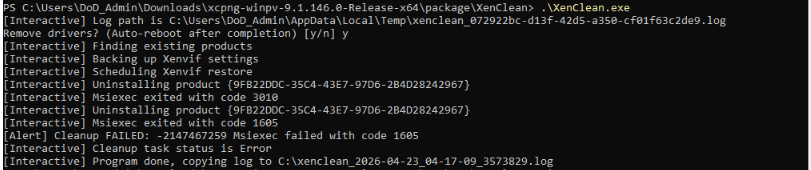
Also, contrary to what's stated in the release notes, the VM does not automatically reboot. I suspect that's a consequence of the utility not completing successfully to trigger the reboot.
ULTIMATE SOLUTION FOR ME (might be different for you) :
- Mount any Windows ISO to the VM (I used the Windows Server 2022 ISO)
- Navigate to the Advanced tab of the VM and change the boot order so DVD-Drive is first (don't forget to click Save)
- Press any key, as prompted, to trigger a boot into the ISO
- Press next and select "Repair your computer"
- On the next screen select "Troubleshoot" and then "Command Prompt"
- You will now have a command prompt open and at the X:\ drive
- Type C:\ and hit enter to drop to the system drive for the installed OS
- Navigate to the folder holding the XenBootFix utility. For me it was C:\Users<MyUser>\Downloads\xcpng-winpv-9.1.146.0-Release-x64\package\XenBootFix
- Type
XenBootFixe.exe C:\Windowsand wait for the utility to finish, then reboot the VM. - Install the XCP-ng Windows Guest Tools and reboot when prompted.
- After the VM boots back into Windows, confirm on the VM's General Tab that you see the message
Management agent 9.1.145-77 detected. - Don't forget to go back into the VM's Advanced tab and disable the DVD-Drive under Boot Order.
Sharing this, in hopes that the Vates team will see and address this issue, and it might help someone else out of a jam.
-
Thanks for the report. This is a known issue and will be fixed in the next full release.
In the meantime, I've released an interim XenClean 9.1.148 that will resolve this issue.https://github.com/xcp-ng/win-pv-drivers/releases/tag/v9.1.148
-
@dinhngtu Thanks for the fast response, as always.
Hello! It looks like you're interested in this conversation, but you don't have an account yet.
Getting fed up of having to scroll through the same posts each visit? When you register for an account, you'll always come back to exactly where you were before, and choose to be notified of new replies (either via email, or push notification). You'll also be able to save bookmarks and upvote posts to show your appreciation to other community members.
With your input, this post could be even better 💗
Register Login