Veeam for Xen Orchestra has been release today 13.1
-
Nothing reported yes since i was able to get the installer working, still in testing mode. I believe in beta only worked in B&R on windows but not in the appliance. I thought i read that support would come to the appliance in 13.1 that is why i was supporised when i did not see the option for it once it got it installed.
If i overlooked something in the appliance please share the details.
-
So when i try to run the installer for just he plugin on a fresh windows server it prompt that b&r 13.1 needs to be installed. On fresh install of 13.1 the plugin is include. My guess if someone is upgraded from previous version the plug would not get installed by default? When i run the plug installer with B&R 13.1 fresh install it prompts to uninstall the plugin.
-
Ok with the veeam Appliance you can use a windows vm or pc with the veeam console and you can connect the applaince to add nfs share for backup repo and connect to XCP-NG.
So two working cofigs...
- Windows VM with B&R
- Veeam Appliance + Windows Client for console access
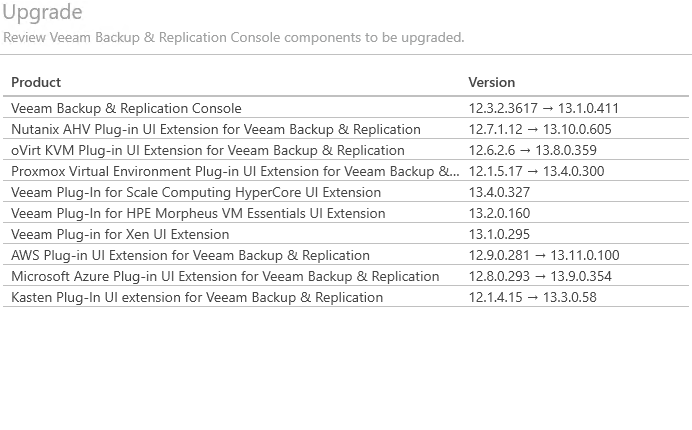
When i upgraded the current veeam client to the latest client it also installed the xcp-ng plugin.
-
That is a useful pair of findings, thanks for going back and testing both.
So the appliance was never the blocker, it just needs the Windows console next to it to add the NFS repository and connect XCP-ng, which fits what @AtaxyaNetwork saw too.
The part I would not have guessed is that upgrading an existing console pulls the plug-in in by itself, while running the standalone plugin installer against a fresh 13.1 offers to uninstall it instead, so anyone coming from 12.x probably wants to look at the console component list rather than hunt for a separate download.
Your screenshot showing
Veeam Plug-In for Xen UI Extension 13.1.0.295sitting next to the Nutanix, oVirt and Proxmox extensions is a good confirmation it is a proper component now and not a side channel.I have not run 13.1 myself so I am going entirely on your screenshots here. If you get as far as a first successful backup run, it would be great to hear how that went.
-
After going back to Veeams website and review the information they do state allot of features are not ready in the web interface use to interact with the Appliance vs the Windows client and suggest to use the windows client.
I guess its a debate on which way to deploy it. The application seems to focus more on security by forcing secure passwords and setting up MFA. While the installing B&R on windows. Well its Windows....
Using the Windows client to interact with either install options function identically.
Just an obvious note - Dont backup vms with Veeam and Xen Orchestra. Veeam will break the backup chain on Xen Orchestra forcing next Xen Orchestra backup to do a Full backup. I didnt push further and do another Veeam backup.
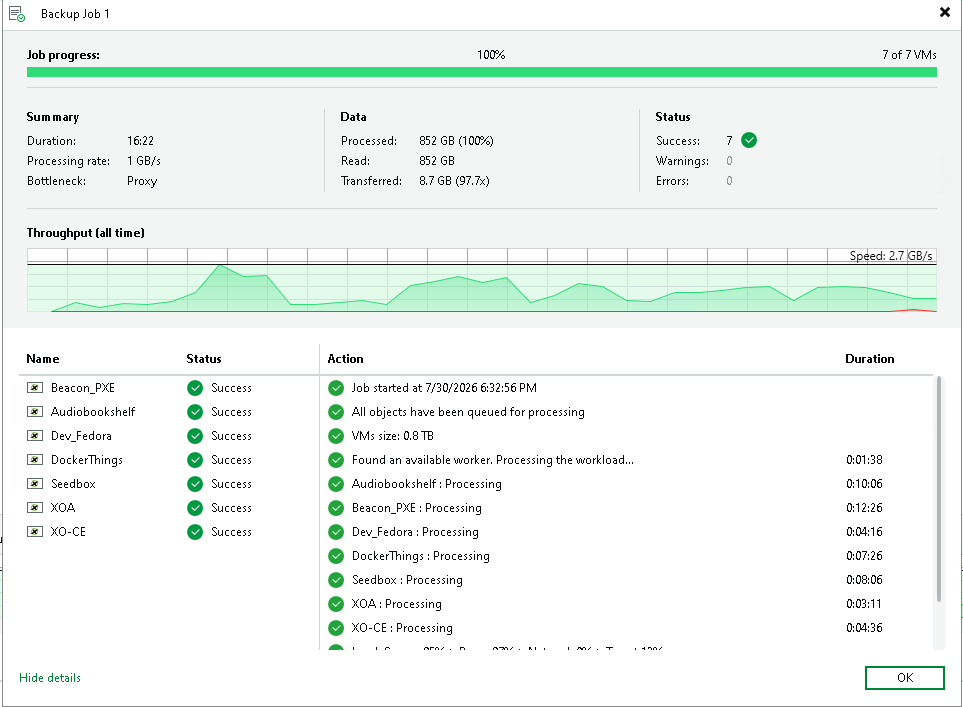
Have not tested Restore functionality as of yet.
-
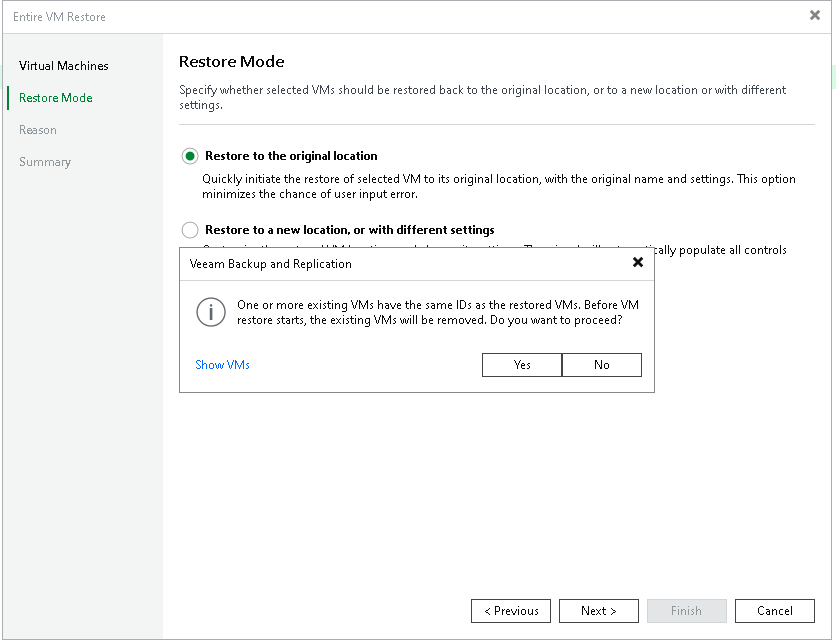
So i just attempted a restore not sure if this is a Xen thing or Veeam thing.
Xen Orchestra will leave the orginal VM alone and just create a new one. This states it will remove the original vm.
-
@acebmxer Pretty sure that coming from Veeam. Did you try the option to Restore with different settings?
-
Yes later I did try and it restore the vm along side the original with the "_" a underscore appended to the end of the name of the vm. Original -
Windows Server 2022. Restored -Windows Server 2022_ -
After trying a few more restores the other vms did not get this name change. Not sure why it happened to the one vm, but the other retained their original names and tags.
-
@acebmxer You need two Disk with 300GB
-
@acebmxer You need two Disk with 300GB
If this is a reply to my initial post. I have already got it installed. Where do you see this 300GB requirement?
https://helpcenter.veeam.com/docs/vbr/em/system_requirements.html?ver=13
Disk Selection Logic: When selecting a disk for system and adjacent functions, Veeam Software Appliance automatically chooses an SSD over an HDD, and selects the smaller disk of the two available. The sizing recommendations for Disk 1 below remain valid for the system disk.
Disk 1: 240 GB1 minimum. This disk hosts Veeam JeOS, Enterprise Manager Veeam Backup & Replication software, configuration database and instant recovery cache.
Recommended sizing depends on the number of protected workloads. Sizing also accounts for configuration database growth as you add more workloads to protect:
480 GB1 SSD for small environments (up to a few hundred workloads).
960 GB1 SSD for medium-sized environments (up to a few thousand workloads).
Multi-TB1 SSD for large environments. Larger capacity increases the disk space available to instant recovery cache, allowing for running more machines for longer time.
Note: After Veeam Software Appliance deployment, adding new storage devices or resizing existing ones is not supported. Plan your disk capacity carefully before you start the deployment.Disk 2: 240 GB1 minimum. This disk hosts guest file system catalogs and backups, therefore recommended sizing depends on your backup storage needs. Any additional disks found in the system during Veeam Software Appliance deployment will be automatically joined with Disk 2 into the single Logical Volume Manager (LVM) spanned volume.
This is only backing a few vms around 10 vms, and actual location is to nfs storage.
-
So I ended up going with the Windows B&R as i could net setup the windows mount server when setting up the repo for the backups. It would setup the linux one but not the windows one. This was with using the veeam console from a windows client. So i ended up with the Windows one.
Now after a few backups i am see this warning / error....
8/5/2026 5:34:50 PM Warning : Failed to use CBT: [Task e75c4247-2ee1-7b51-088c-b970ace60f3d (Async.VDI.list_changed_blocks) failed: . SR_BACKEND_FAILURE_460. . Failed to calculate changed blocks for given VDIs. [opterr=Source and target VDI are unrelated]First i thought it was because i maped the new job to older backups from Beta v1. So i purged all old backups and started fresh. The full backups were successful. Now on first delta 4 out of 7 vms have that warrning.
This a Veeam issue or xcp-ng?




Hello! It looks like you're interested in this conversation, but you don't have an account yet.
Getting fed up of having to scroll through the same posts each visit? When you register for an account, you'll always come back to exactly where you were before, and choose to be notified of new replies (either via email, or push notification). You'll also be able to save bookmarks and upvote posts to show your appreciation to other community members.
With your input, this post could be even better 💗
Register Login