Slow Backups | XOA Performance Test – Upgrading from 2 vCPU to 4 vCPU / 8GB RAM
-
XOA Performance Test – Upgrading from 2 vCPU to 4 vCPU / 8GB RAM
I wanted to share my experience because I was seeing unusually high CPU usage on my XOA VM during backup operations.
Environment:
- XCP-ng pool with multiple hosts
- XOA running as a VM
- SSD RAID10 NFS storage
- Daily delta backups (~17 production VMs)
- Weekly backup jobs with Health Checks
- Backup window previously around 7 hours
Symptoms before optimization:
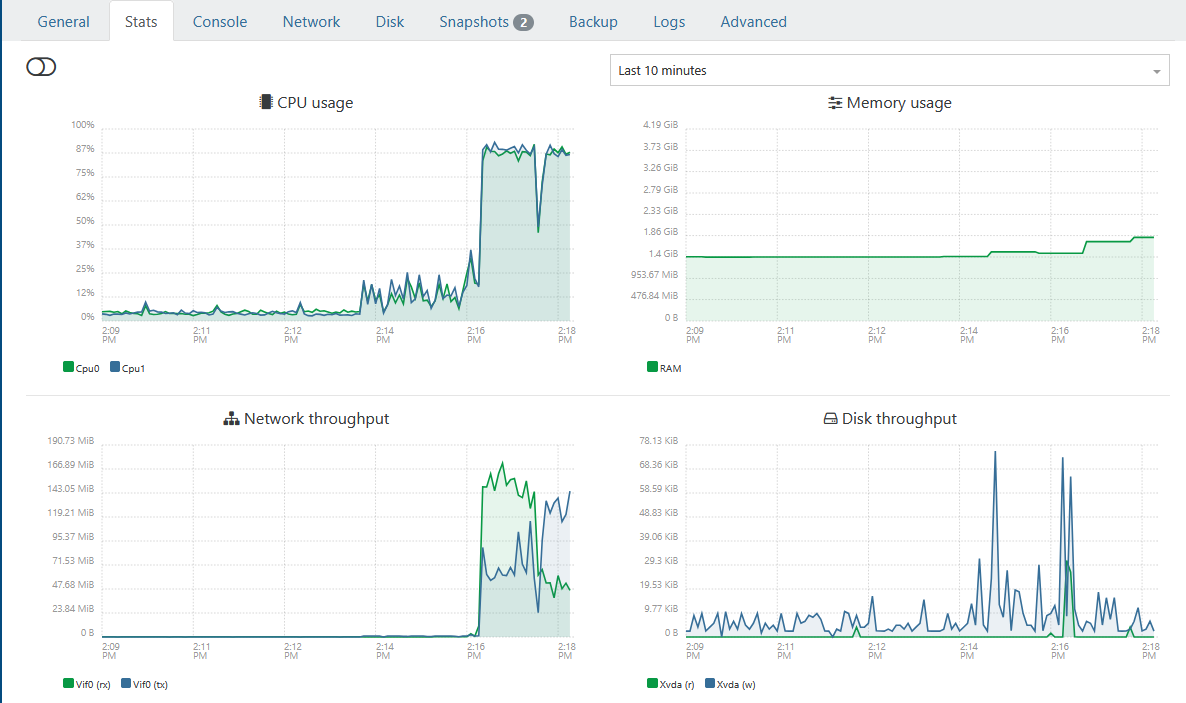
- XOA CPU usage frequently close to 100%
- During backups, multiple backupWorker.mjs processes saturated available CPUs
- XOA felt sluggish while backups were running
- Backup jobs took significantly longer than expected
- htop showed worker processes fighting for CPU resources
Original XOA VM configuration:
- 2 vCPU
- 4 GB RAM
- 1 socket / 2 cores
Observed htop behavior during backups:
/usr/local/lib/node_modules/xo-server/node_modules/@xen-orchestra/backups/backupWorker.mjs
Several workers continuously consumed nearly all available CPU.
IMPORTANT:
Run the following commands via SSH directly on the XCP-ng Pool Master.
Do NOT perform these changes through the Xen Orchestra GUI itself because you are modifying the XOA VM that is currently managing your environment. Otherwise you may lock yourself out or interrupt your own management session during the reconfiguration process.
Connect to the Pool Master:
ssh root@<POOL-MASTER-IP>
First identify the XOA VM UUID:
xe vm-list | grep -i xoa -B1 -A2
or:
xe vm-list name-label="<YOUR-XOA-VM-NAME>"Example output:
uuid ( RO): xxxxxxxx-xxxx-xxxx-xxxx-xxxxxxxxxxxx
name-label ( RW): XOA-Production
power-state ( RO): runningCopy the UUID for the following steps.
Test procedure:
I increased XOA resources to:New XOA configuration:
- 4 vCPU
- 8 GB RAM
- CPU topology: 1 socket / 4 cores
Procedure used:
- Shutdown XOA VM
xe vm-shutdown uuid=<XOA-VM-UUID>
Wait a few seconds and verify status:
xe vm-list
uuid=<XOA-VM-UUID>
params=name-label,power-state- Set memory
xe vm-memory-limits-set
uuid=<XOA-VM-UUID>
static-min=8GiB
dynamic-min=8GiB
dynamic-max=8GiB
static-max=8GiB- Increase vCPU count
xe vm-param-set
uuid=<XOA-VM-UUID>
VCPUs-max=4xe vm-param-set
uuid=<XOA-VM-UUID>
VCPUs-at-startup=4- Set CPU topology
xe vm-param-set
uuid=<XOA-VM-UUID>
platform:cores-per-socket=4- Adjust xo-server.service config
sudo nano /etc/systemd/system/xo-server.service
replace entry
ExecStart=/usr/local/bin/xo-server
with:
ExecStart=/usr/local/bin/node --max-old-space-size=7680 /usr/local/bin/xo-server- Start XOA again
xe vm-start uuid=<XOA-VM-UUID>
Verification:
xe vm-param-get
uuid=<XOA-VM-UUID>
param-name=VCPUs-maxxe vm-param-get
uuid=<XOA-VM-UUID>
param-name=VCPUs-at-startupxe vm-param-get
uuid=<XOA-VM-UUID>
param-name=platformxe vm-list
uuid=<XOA-VM-UUID>
params=name-label,power-stateResults from the same backup job:
Before:
- Backup size: 10.58 GiB
- Transfer speed: 150.21 MiB/s
- Total duration: 3 minutes
- Health check transfer: 2 minutes
After:
- Backup size: 10.71 GiB
- Transfer speed: 229.12 MiB/s
- Total duration: 2 minutes
- Health check transfer: 1 minute
Measured improvement:
Transfer throughput:
+52%Backup duration:
-33%Health check transfer:
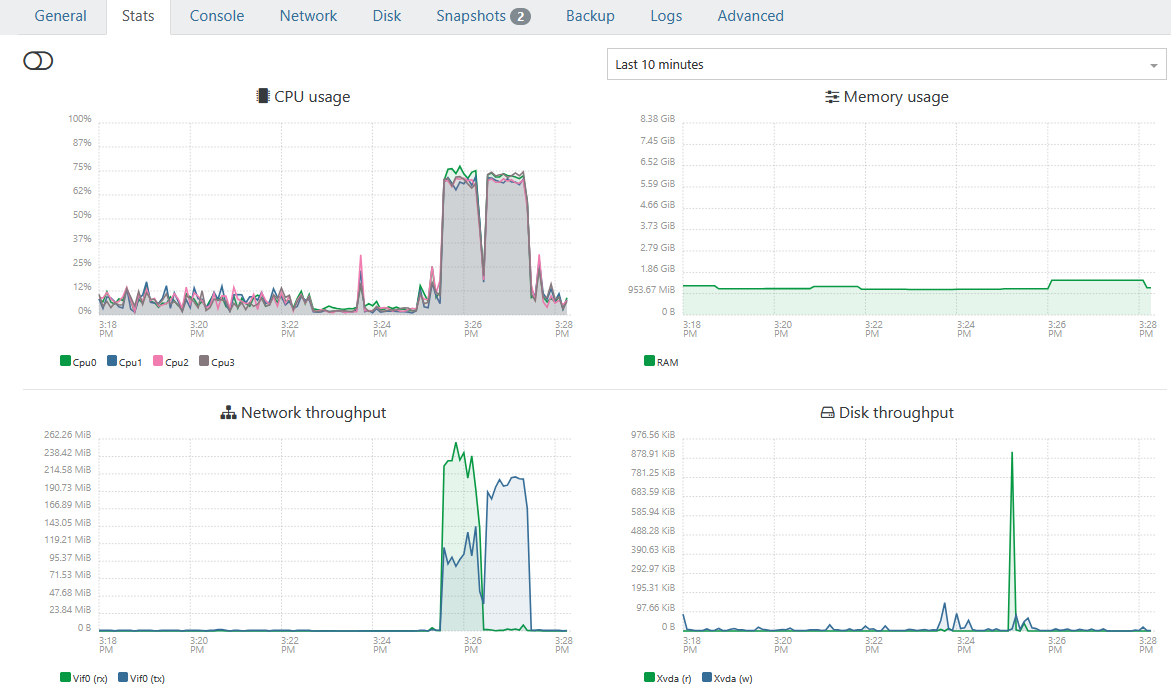
-50%After the upgrade, htop showed backup workers distributed across all available CPUs instead of saturating only two cores.
Conclusion:
For my environment the bottleneck was not:
- NFS
- Storage
- SSD RAID10
- Host performance
The bottleneck appears to have been XOA itself being underprovisioned.
If you are running larger backup jobs, health checks, multiple workers, or backup-heavy environments, increasing XOA resources may provide a noticeable improvement.
I still need to test the full nightly production run (~17 VMs), but initial results are very promising.
Hope this helps someone.
-
Before:
After:
-
@LoTus111 nice, but could be better
you're missing the additionnal step in the TIPS section here :
https://docs.xen-orchestra.com/xo5/troubleshooting#memoryupgrading XOA to 8Gb is not enough, you have to tell xo services to be able to use this additionnal RAM.
-
@Pilow Thanks will look into this. MEM was somhow never realy at high peak during all the tasks. But off course is allocating more MEM when it is not used semi optimal

-
@LoTus111 nice, but could be better
you're missing the additionnal step in the TIPS section here :
https://docs.xen-orchestra.com/xo5/troubleshooting#memoryupgrading XOA to 8Gb is not enough, you have to tell xo services to be able to use this additionnal RAM.
Question is if XO is built with 6gb initially does one still need to adjust memory via the command? Or only if expanding after the fact?
Edit -
to answer my own question and for others. After adding this function to my script it does appear the XO will setup appropriately with deployed with 6gb ram initially.Update - The above information is incorrect. I must have made changes when I thought i didn't. I apologize for the incorrect information.
On fresh install Debian 13 with 8gb ram node -v 24.15.0.============================================== Xen Orchestra Memory Allocation ============================================== Setting Value ----------------------------- ----------------------------------- Total system RAM 7943 MB Current xo-server heap limit ~2240 MB (node default, no --max-old-space-size set) Recommended heap limit 7431 MB -
Thanks for taking the time to write this up with before/after numbers. That kind of post is genuinely useful for the next person hitting slow backups.

Pilow's catch looks like the important one to me: I think raising the VM's RAM on its own doesn't help much unless xo-server is also told it can use it, which is the heap-limit tip here: https://docs.xen-orchestra.com/xo5/troubleshooting#memory.
I could be wrong, but the recommended XOA sizing also lives at https://docs.xen-orchestra.com/xo5/xoa#xoa-vm-specifications if you want to sanity-check vCPU/RAM against what's suggested for your backup load.Good to hear acebmxer confirmed a fresh 6 GB deploy sizes the heap correctly by itself; that matches my (limited) understanding that the manual step mostly matters when you grow the VM later.
Let's wait for the experts to chime in; they will know far more about squeezing the last bit of backup throughput out of XOA.
-
@poddingue @pilow Thanks again for the inputs, i added the additional information in my initial post
-
the last rewrite of the stream processing ( spring 2025 ) focused on stability and memory footprint, and , on a standard cpu, it tops at around 300MB/s per backup job. Your benchmarks are very interesting, and they confirm most of it.
this limit was not really an issue since, in most case the xapi was limiting around 100MB/s per disk , but it will be more a more visible limit
Note that master have some fixes on the memory usage (not related to backups)
That's why we have started an internal workforce focused on performance, with all the teams from the kernel to the backups, including storage, network and xapi.
If I can brag a little :
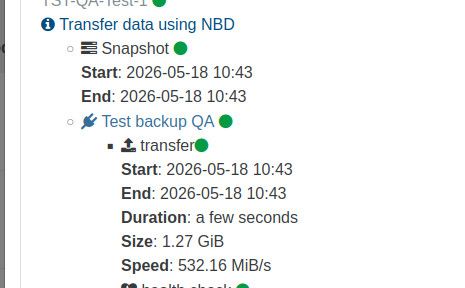
i9 , nvme disk , backup to a nvme disk in passthrough, xoa and vm are on the same host, so it's quite far from real world data, but it shows where the limit is




Hello! It looks like you're interested in this conversation, but you don't have an account yet.
Getting fed up of having to scroll through the same posts each visit? When you register for an account, you'll always come back to exactly where you were before, and choose to be notified of new replies (either via email, or push notification). You'll also be able to save bookmarks and upvote posts to show your appreciation to other community members.
With your input, this post could be even better 💗
Register Login