GPU Passthrough
-
@gb.123 Are you sure you have the correct drivers installed? Also, check if the GPU is compatible with AMD CPUs -- I only had Intel CPUs, so am not sure if that's an issue or not.
-
Thanks so much for your response !
I agree with you that the drivers may be a problem. I am starting again from scratch and re-installing everything.
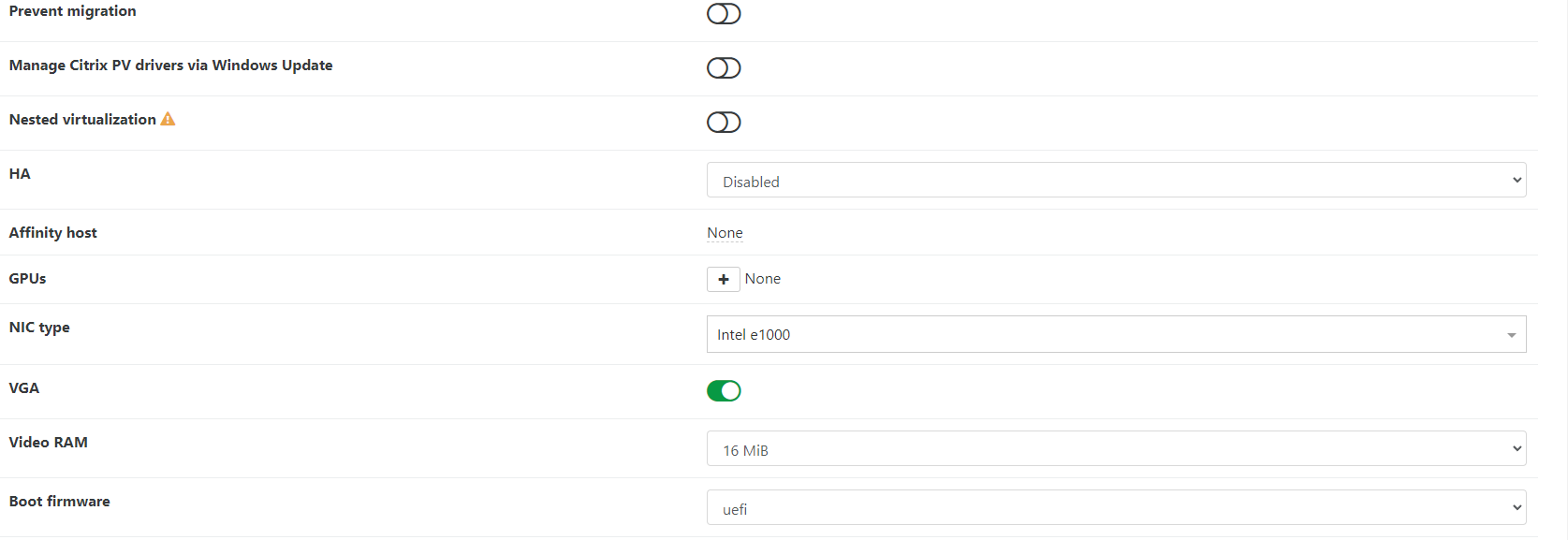
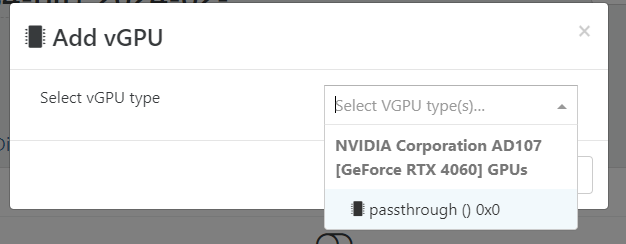
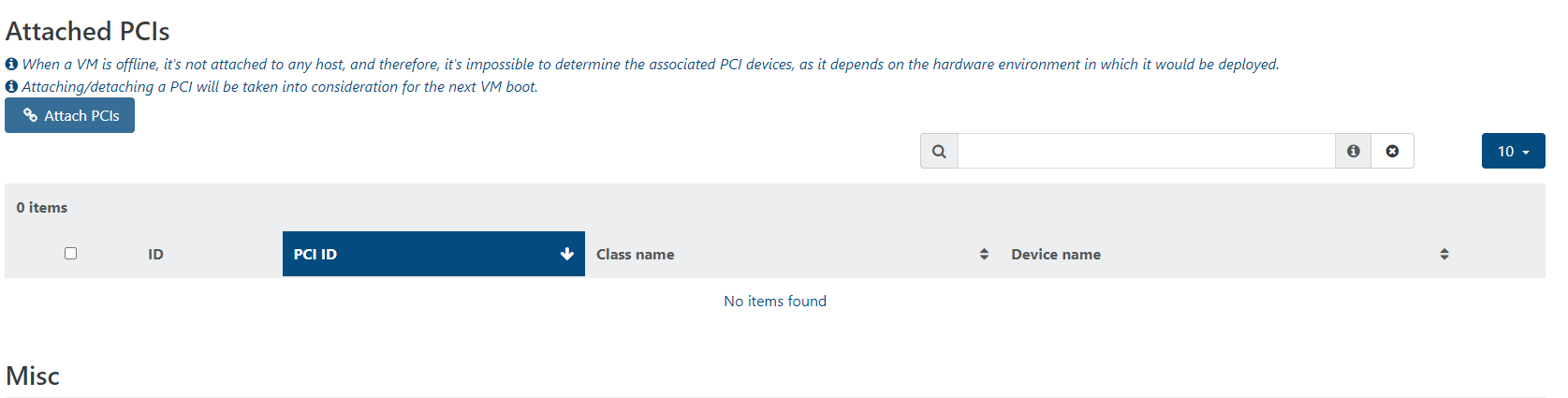
Though a question does remain that whether we need to use both options (Attach PCI + GPU Selection) or either option for GPU pass through. Maybe someone in @vates-tech-support can clarify exactly what the option in Xen Orchestra means.From what I know, the GPU option in the upper menu wasn't there a few version before. Seems to be a new entry.
-
@gb.123 I'm sure you can also find some NVIDIA "how to" guides that might be helpful. As mentioned before, I've only done server passthrough so that all VMs would get access,
so sorry I can't provide more specifics. You can always try with one or the other option and add the other if it still doesn't work. I'm pretty sure, though, that you do need both enabled.
Keep us posted! -
@tjkreidl
Thanks once again for your help and guidance!
I have seen/read many 'how to' videos/docs. The problem was not the method I was using. I managed to get this working albeit there is a bug in XCG-ng I suppose.-
If USB Keyboard & Mouse is passed-through along-with GPU:
The GPU gets stuck in D3 state (Classic GPU reset problem) -
If no vUSB is passed but GPU is passed through:
The GPU works correctly and resets correctly
-
-
@gb.123 Interesting -- alert the XCP-ng team to take a closer look, if they haven't seen this already.
-
@gb.123 what xen and gurst version etc were you using?
I'm about to try GPU PT and having USB st the same time is important
-
Hello
Hope this help here is how I manage to configure GPU Passthrough.
In my case I have follow the documentation on XCP-ng website : https://docs.xcp-ng.org/compute/
To sum up with XOA 8.3 here is what I did:
ssh to XCP host, to identify the GPU PCI and run lspci to find my GPU.
[root@xen ~]# lspci
...
0f:00.0 VGA compatible controller: NVIDIA Corporation GA102 [GeForce RTX 3090] (rev a1)
Then disable the GPU for being used by XCP-ng itself( Dom0) using the XCP-ng uuid
[root@xen ~]# xe pci-list
uuid ( RO)           : 7970825f-dd1c-c270-93a3-6761f00e1362
    vendor-name ( RO): NVIDIA Corporation
    device-name ( RO): GA102 [GeForce RTX 3090]
         pci-id ( RO): 0000:0f:00.0
xe pci-disable-dom0-access uuid=<pci uuid>3 reboot the XCP-ng host
4 Then from XOA attached the PCI related to my GPU to my guest VM.
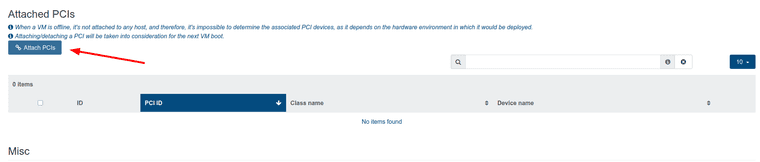
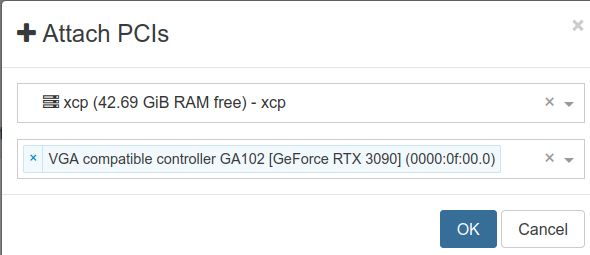

5 install official Nvidia drivers ( closed source ) and have then the card available in the guest.
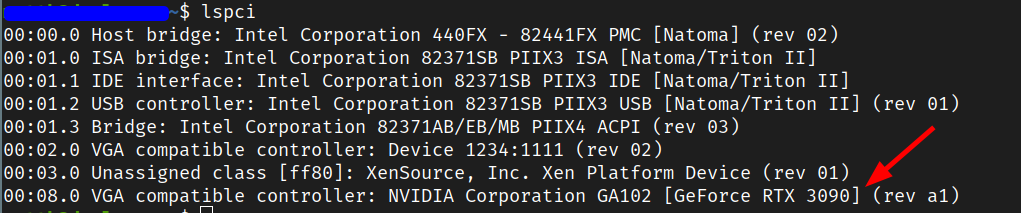
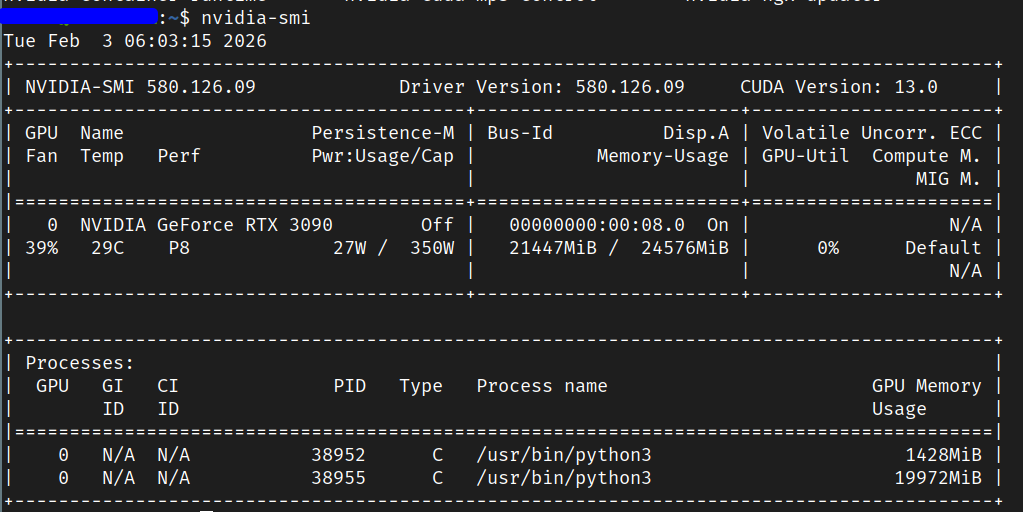
What I didn't do is adding a vGPU in the guest configuration:

I did it some times ago, also I don't recall having to do any specific configuration in the Bios to make this work.
PS: I have an issue, I don't have output to the Display port or HDMI of this video card, which is not a blocker for me as that's not my immediate needs.
Best.
-
I am running NVIDIA P40s on a DELL R720/R730 and a NVIDIA A2000 12GB on a DELL Optiplex 9010 in my playlab. Getting the GPUs to be accessible for VMs was quite easy: shutdown the XCP-ng host, install the GPUs, start the host again, activate the GPU in the advanced settings of the host in the PCI Devices section (“Passthrough enabled”). The host will restart at this point after displaying a warning. That's it – the GPU can now be assigned to a VM in the VMs advanced settings. I do use the GPUs for AI workloads under Debian though, so your use case might vary.
-
M MihaiAmbrosie referenced this topic on
-
@gskger that's interesting you are using a NVIDIA GPU. The documentation states, "due to proprietary reasons, currently NVIDIA is not supported".. But that's for vGPU, not just general passthrough. I assume you're using it for straight passthrough to a VM and not to multiple VMs?
I wish this worked for multiple VMs. I'd like to move to XCP from VMW. But, I have till next Summer to decide....
-
@coolsport00 Yes, I am using the GPUs with llama-swap to serve qwen3.8-27b and qwen3.6-35b for local inference with Bifrost as an AI gateway for local and cloud AI provider. Never tried vGPU myself.
-
-
@coolsport00 See if any of this helps:
Here is the step-by-step guide to configure the NVIDIA GeForce RTX 3090 for full PCI passthrough to a virtual machine in XCP-ng.Step 1: Identify the GPU on the XCP-ng HostFirst, log in to your XCP-ng host via SSH or use the local console shell to find the exact hardware address of your RTX 3090.Run the following command to list your PCI devices and filter for NVIDIA:bashlspci | grep -i nvidia
Use code with caution.Look for the lines corresponding to your RTX 3090 and its Audio Controller. They will look similar to this:text01:00.0 VGA compatible controller: NVIDIA Corporation GA102 [GeForce RTX 3090] (rev a1)
01:00.1 Audio device: NVIDIA Corporation GA102 High Definition Audio Controller (rev a1)
Use code with caution.Take note of the PCI identifiers (e.g., 01:00.0 and 01:00.1). Note that your specific identifier numbers might vary based on your motherboard layout.Step 2: Hide the GPU from the Control Domain (Dom0)To prevent the main XCP-ng host system (Dom0) from seizing control of the graphics card, you must tell it to ignore those PCI IDs on boot.Instruct XCP-ng to assign the GPU components to the passthrough driver (xen-pciback) by executing this command (replace 01:00.0 and 01:00.1 with your actual IDs found in Step 1):bash/opt/xensource/libexec/xen-cmdline --set-dom0 "xen-pciback.hide=(01:00.0)(01:00.1)"
Use code with caution.Reboot the physical server for this driver isolation configuration to take effect:bashreboot
Use code with caution.Step 3: Verify the IsolationOnce your host boots back up, check that the hardware isolation worked as intended.Run this command to verify that the xen-pciback driver has correctly claimed the card:bashxl pci-assignable-list
Use code with caution.You should see your GPU addresses printed in the terminal, confirming they are ready to be passed into a virtual environment:text0000:01:00.0
0000:01:00.1
Use code with caution.Step 4: Attach the GPU to your VM
You can attach the isolated card either visually using Xen Orchestra (XO) or straight from the command line interface.Option A: Using Xen Orchestra (Recommended)Navigate to the Xen Orchestra management interface.Go to the VMs tab and click on the target virtual machine (ensure it is powered down).Click on the Advanced tab of that VM.Scroll down to the PCI devices block.Select both the RTX 3090 graphics and audio IDs from the dropdown checklist and save your changes.Option B: Using the Command Line (CLI)Find the unique identifier (UUID) of your VM:bashxe vm-list name-label="Your_VM_Name"
Use code with caution.Assign the GPU to that VM UUID using the following command syntax:bashxe vm-param-set uuid=<VM_UUID> other-config:pci=0/0000:01:00.0,0/0000:01:00.1
Use code with caution.Step 5: Boot and Install DriversPower on your virtual machine. You can now download and install the official desktop NVIDIA GeForce Drivers directly inside the guest operating system. The installer will recognize the device normally, and you do not need to register a license server or install vGPU client software. -
Hi @tjkreidl . Thank you for your detailed response, but I don't need/use standard GPU passthrough to 1 VM, but to 15. So I need vGPU capability. From the XCP documentation, it looks like for now, it's not possible/supported due to proprietary issues in the Xen OS, at least with NVIDIA cards, which is what I currently use. I guess I could switch to some other vendor, but would like to stay with what I know. Appreciate it!
-
@coolsport00 Why not then just do the GPU passthrough for the entire host and just put the VMs on that host that you want to leverage the GPU? To get specific vGPU capabilities, my recollection is that you'd need to use a GPU that most likely requires licensing, at least as far as NVIDIA is concerned.
-
@tjkreidl

hmm...generally, the 15 VMs would take up much more resources than just one Host would be able to disperse. Let me explain...Currently, with VMW, I have just 5 VMs per ESXi Host, and have 3 physical Hosts, 2 NVIDIA Tesla T4 (a bit legacy now) cards in each Host. I virtually passthrough the underlying cards in each Host to each of the 5 VMs. Not entirely sure how VMW does it architecturally, but VMW disperses the load between the cards amongst the 5 VMs. And maybe that's done in conjunction with the NVIDIA driver installed on ESXi.


 ️Also, the reason I only have 5 VMs per Hosts is because I use them for students to RDP into to run high graphics-need engineering applications (AutoCAD, Revit, inventor Pro). I use Microsoft RDS (really an underrated VDI solution imo) and it "round-robins" the student RDP connections amongh the 15 VMs. I can have up to around 10 RDP connections to each VM. But, according to specs, theoretically I can have around 20 RDP connections. So, as you can see...resources can get tight really quick..thus, only 5 VMs per Host. Anyway, that's what I'm wanting to achieve with XCP. I have a little time...till next summer...to make a decision on what h/v to migrate our VMW VMs off of. My hope is that XCP will be the choice. Ultimately, I'm the one to make the choice, but this would be a definite negative. PVE is my only other option. Not sure they have vGPU passthrough tho either (I have yet to research it).
Thanks for all the info and assist!
-
@coolsport00 While I was working at the university, we used RDS on Windows servers with RTX GPus with good results. The T4 I believe required NVIDIA licensing.
You have a few options: 1) Upgrade your servers if possible, 2) Add more hosts and GPUS (the used equipment market is one option, if you want to risk unsupported equipment),
3) If the GPU is the limitation and not the host, consider upgrading to a 5000 or 6000 series GPU. oOr NVIDIA GPUs to leverage the RTX vWS and CUDA capabilities, the latter's support being particularly important for Revit, AutoCaD, and other high-end graphics apps. We used P4 and T4 GPUs at the time with success under XenServer and with the high-end NVIDIA licensing (which unfortunately requires, as I'm sure you know, a separate VM running the licensing server).In any case, you are fortunate to be able to test this all out way ahead of before you have to go live.
-
@tjkreidl Yeah...we have a "DLS" licensing server to license "virtual apps" of connections to the VMs. Not horribly expensive, but another layer of complexity (at times) & of course a nuiscance

I don't know....will be looking into this more. Whether XCP or PVE, at the moment...this is my limitation. We have Cisco Voice VMs. Not sure if you're aware, but those are only supported on VMW, or Cisco's own appliance system. What a crap show! So, we'll have to continue to run a bit of VMW for those even if most of our VMs are migrated to something else. At the very least, I can probably still run my VDI/RDS VMs 1 more additional yr until 2028 until this gets better support.
Thanks for the info & convo

-
@coolsport00 Sorry about the VMW need for the Cisco product. Sounds like you have a number of constraints, finances being I'm sure one of them! At least you have time on your hands and the means to experiment. You may, als, end up with a number of different platforms to meet your needs. We ran both Sun Microsystems and Red Hat Linux and Microsoft Windows servers, each taking on specific duties. It's far from ideal and probably not very cost-effective, but you do what you have to to get stuff to work.


Hello! It looks like you're interested in this conversation, but you don't have an account yet.
Getting fed up of having to scroll through the same posts each visit? When you register for an account, you'll always come back to exactly where you were before, and choose to be notified of new replies (either via email, or push notification). You'll also be able to save bookmarks and upvote posts to show your appreciation to other community members.
With your input, this post could be even better 💗
Register Login